Exhausted Codex Pro 20x Weekly Limit in 3 Days: Extra Credits vs. AWS Bedrock Workaround
 Hit the Codex weekly limit: emergency recharge options (AI generated illustration)
With the recent boom in agentic coding workflows, I’ve been heavily leaning on autonomous agents to read, inspect, and refactor whole codebases. But that speed comes at a price: I managed to burn through 100% of my Codex Pro 20x plan weekly allowance in just three days.
When coding agents run multiple subtasks, chain tool calls, and digest extensive repositories, quota gauges fill up at alarming speeds. With critical milestones ahead this week, being blocked wasn’t an option. I explored two escape routes to keep the momentum going: topping up OpenAI credits directly and rerouting requests through AWS Bedrock.
1. Direct OpenAI Credit Top-up
The first and most direct option is purchasing pay-as-you-go API credits on the OpenAI platform.
OpenAI happens to be running a 40% discount promotion on credit purchases right now.
- Subscription vs. Pay-As-You-Go Economics: Generally speaking, flat subscriptions (like Pro / Team tiers) offer vastly superior token-per-dollar value compared to pay-as-you-go credits. If you anticipate sustained heavy usage over months, subscribing to a second account is mathematically more cost-effective.
- The Convenience of 40% Off: However, setting up a secondary account, configuring billing, and switching authentication across multiple machines can be cumbersome. If you just need to survive a sudden crunch for a few days, buying discounted credits is a very practical, low-friction stopgap.
- Watch the 1-Year Expiration: Keep in mind that purchased credits come with a strict 1-year validity period. In South Korea, users are accustomed to 5-year expirations for vouchers and prepaid store points under Fair Trade Commission guidelines, so a 1-year cutoff can easily catch you off guard. Only top up what you realistically expect to use within a reasonable timeframe.
2. Rerouting via AWS Bedrock
The second alternative is routing OpenAI models (such as GPT-5.6 variants) through AWS Bedrock.
Under standard conditions, AWS Bedrock does not offer equivalent 40% discounts, making direct OpenAI credits the cheaper route per token. However, if you have leftover AWS credits from startup programs, hackathons, or promotional tiers, this is the perfect opportunity to put that balance to work. Having a modest pool of AWS credits myself, I decided to test the setup.
The integration was surprisingly straightforward. Here is a step-by-step walkthrough.
Step 1. AWS CLI Authentication
First, ensure your AWS CLI is authenticated with credentials that have Amazon Bedrock model invocation permissions.
# For standard IAM credentials
aws configure --profile codex-bedrock

# Or when using AWS IAM Identity Center (SSO)
aws sso login --profile codex-bedrock
Verify your active session:
aws sts get-caller-identity --profile codex-bedrockStep 2. Creating a Dedicated Bedrock Configuration for CLI
Duplicate your existing ~/.codex/config.toml into a dedicated Bedrock config file:
cp ~/.codex/config.toml ~/.codex/bedrock.config.tomlEdit ~/.codex/bedrock.config.toml as follows:
model = "openai.gpt-5.6-sol"
model_provider = "amazon-bedrock"

[model_providers.amazon-bedrock.aws]
profile = "codex-bedrock"
region = "ap-northeast-2" # Replace with your target AWS region
wire_api = "responses"
Key Difference: When using Amazon Bedrock, model IDs require the
openai.prefix (e.g.,gpt-5.6-sol➡️openai.gpt-5.6-sol).
Launch the Codex CLI with your custom profile:
codex --profile bedrockOpening the model selection prompt displays the OpenAI models hosted through AWS Bedrock:
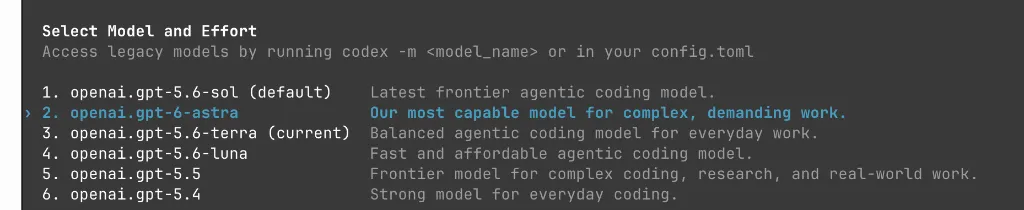 Model selection screen when launched with
 codex --profile bedrock
Step 3. Seamless Switching in the Desktop App (ChatGPT / former Codex App)
You can also utilize Bedrock within the desktop GUI application. The app reads from ~/.codex/config.toml, so leaving the provider block in place and toggling a few lines makes switching between normal and emergency modes painless.
Add the provider definition to the bottom of ~/.codex/config.toml:
[model_providers.amazon-bedrock.aws]
profile = "codex-bedrock"
region = "ap-northeast-2"
wire_api = "responses"
Then simply toggle the model and model_provider fields as needed.
① Switching to Emergency Bedrock Mode
# Bedrock active
model = "openai.gpt-5.6-terra"
model_provider = "amazon-bedrock"

# Default OpenAI (commented out)
# model = "gpt-5.6-terra"
② Reverting to OpenAI Subscription (After Quota Reset)
# Default OpenAI active
model = "gpt-5.6-terra"

# Bedrock (commented out)
# model = "openai.gpt-5.6-terra"
# model_provider = "amazon-bedrock"
Once saved, the desktop application adapts dynamically:
 Custom reasoning effort (High) slider operates normally with Bedrock models.

amazon-bedrock displayed in the command palette and status bar.
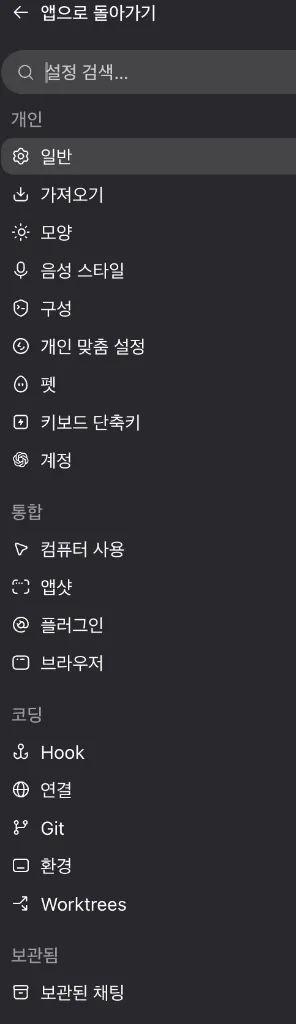 Desktop app preferences panel.
Wrap-up
- Ideal scenario: Pacing usage throughout the week (though difficult to resist once you experience full agentic velocity).
- Pragmatic alternatives:
- If you have idle AWS promotional credits ➡️ AWS Bedrock integration is an effective way to burn them down without out-of-pocket expenses.
- If you need a quick short-term bridge ➡️ Grab the OpenAI 40% discount credit top-up (remembering the 1-year expiration constraint).
- For chronic quota shortages ➡️ Opening a second subscription account remains the most cost-effective long-term option over pay-as-you-go tokens.
Hopefully this guide helps you stay productive when your primary AI quotas unexpectedly run dry!